Docker - 第三章 | 安裝 MSSQL
在Windows 環境建立MSSQL。
開始前需先下載Docker Desktop on window,參考連結 官方教學
搜尋 Image
docker search mssql
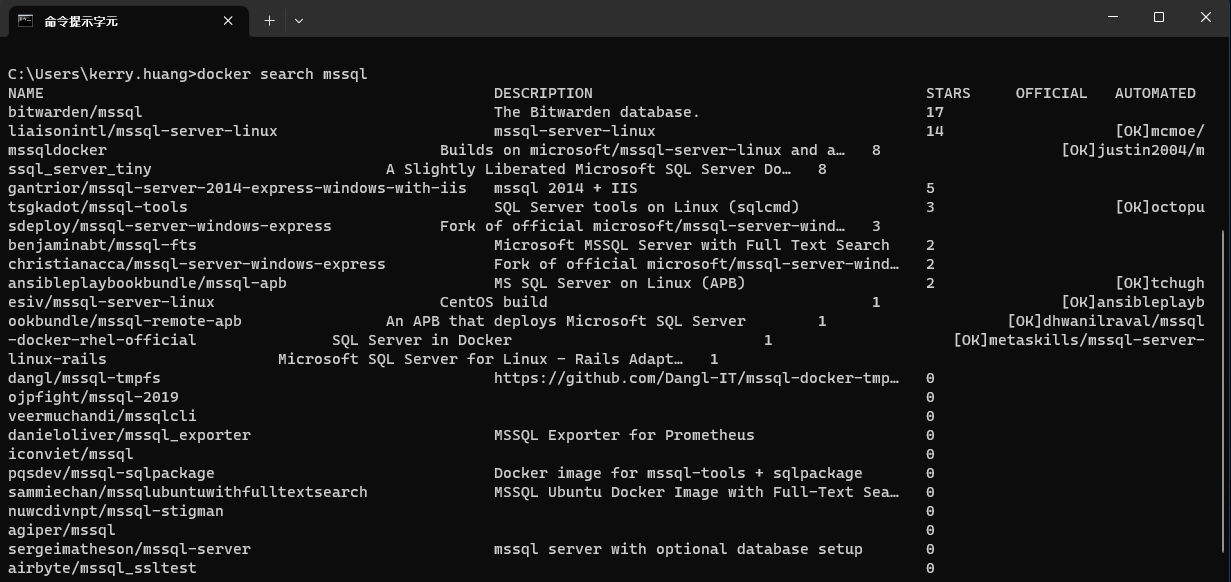
在Docker Hub搜尋mssql都找不到Microsoft官方的image,後來直接用 Google 搜詢 [docker mssql image]就有了。
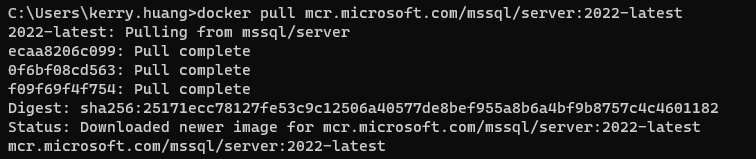
拉取 Image
docker pull mcr.microsoft.com/mssql/server:2022-latest
查看 Image
docker images

執行 Image
(為了方便閱讀下面的程式碼有換行 要貼到命令提示字元前請把換行刪除哦!)
docker run -e "ACCEPT_EULA=Y"
-e "MSSQL_SA_PASSWORD=需要輸入一個超級困難的密碼"
-p 1433:1433
--name 輸入你的container名稱(當然是要英文來者)
-d mcr.microsoft.com/mssql/server:2022-latest
- -e ACCEPT_EULA=Y : 設定環境中授權條款同意書 ( Y )
- -e "MSSQL_SA_PASSWORD:需要輸入一個超級困難的密碼" : 請輸入一個Really Strong PWD
- -p 1433:1433 :設定連線埠號,那為什麼有兩個呢?因為第一個是你本機的另外一個是Container的
- --name:輸入你的container名稱啦!!!
- -d microsoft/mssql-server-linux (Linux):-d 是run container background 好了之後show container ID給我就好的意思 後面的就是IMAGE名稱啦
- -d mcr.microsoft.com/mssql/server:2022-latest (Windows)

[Windows]
docker run -e "ACCEPT_EULA=Y" -e "MSSQL_SA_PASSWORD=!QAZ2wsx" -p 1433:1433 --name mssql -d mcr.microsoft.com/mssql/server:2022-latest
docker run -d --name mssql `
  -e "ACCEPT_EULA=Y" `
  -e "MSSQL_SA_PASSWORD=!QAZ2wsx" `
  -e "MSSQL_COLLATION=Chinese_Taiwan_Stroke_CI_AS" `
  -e "MSSQL_AGENT_ENABLED=true" `
  -p 1433:1433 `
  --restart always `
  -v D:\Database\mssql\backup:/var/opt/mssql/backup `
  -v D:\docker\mssql\data:/var/opt/mssql/data `
  mcr.microsoft.com/mssql/server:2022-latest
[Mac]
docker run -e "ACCEPT_EULA=Y" -e "MSSQL_SA_PASSWORD=\!QAZ2wsx" -p 1433:1433 --name mssql -d mcr.microsoft.com/mssql/server:2022-latest
容器配置
Requirements
* This image requires Docker Engine 1.8+ in any of their supported platforms.

* At least 2GB of RAM (3.25 GB prior to 2017-CU2). Make sure to assign enough memory to the Docker VM if you're running on Docker for Mac or Windows.

* Requires the following environment flags
"ACCEPT_EULA=Y"
"MSSQL_SA_PASSWORD="
"MSSQL_PID=(default: Developer)"

* A strong system administrator (SA) password: At least 8 characters including uppercase, lowercase letters, base-10 digits and/or non-alphanumeric symbols.
Environment Variables
You can use environment variables to configure SQL Server on Linux Containers.

ACCEPT_EULA
confirms your acceptance of the End-User Licensing Agreement.

MSSQL_SA_PASSWORD
is the database system administrator (userid = 'sa') password used to connect to SQL Server once the container is running. Important note: This password needs to include at least 8 characters of at least three of these four categories: uppercase letters, lowercase letters, numbers and non-alphanumeric symbols.

MSSQL_PID
is the Product ID (PID) or Edition that the container will run with. Acceptable values:

* Developer : This will run the container using the Developer Edition (this is the default if no MSSQL_PID environment variable is supplied)
* Express : This will run the container using the Express Edition
* Standard : This will run the container using the Standard Edition
* Enterprise : This will run the container using the Enterprise Edition
* EnterpriseCore : This will run the container using the Enterprise Edition Core

For a complete list of environment variables that can be used, refer to the documentation here.
查看 Container
docker ps

刪除Container
(不想重做Container可以跳過)
刪除Container先停止運行中的Container
docker stop [Container ID]
刪除Container
docker rm [Container ID]
重新查詢一次Container,目前已經沒有了

登入管理介面
使用SSMS測試連線
http://localhost:1433/ 預設用戶/密碼:sa/******
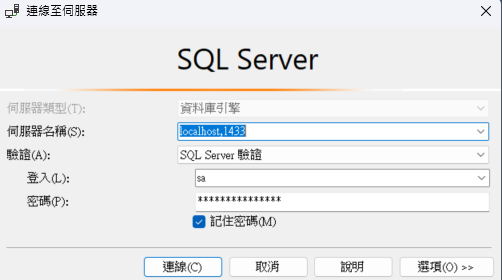
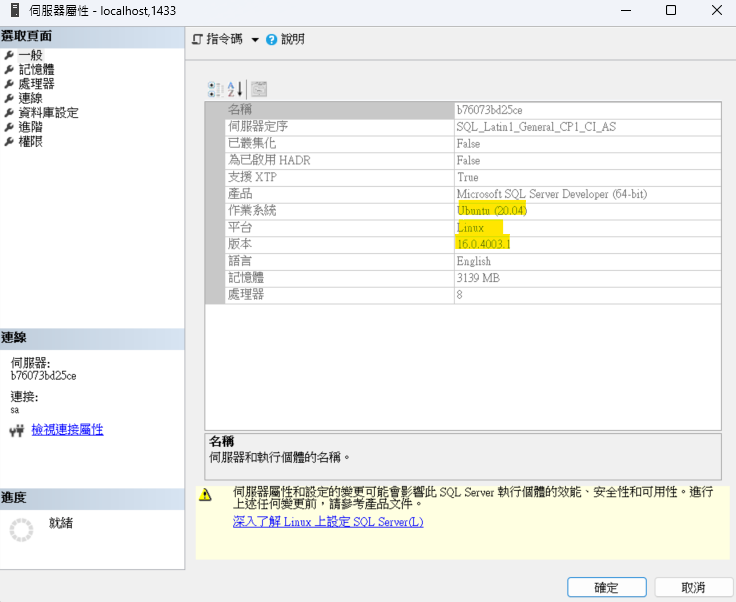
連線成功了